Step-by-Step: How to Clone Your Own Voice Locally for Free
Voice cloning used to mean paying a monthly subscription and uploading your voice to someone else server. In 2026 you can do it at home, for free, with your voice never leaving your own computer. The tool that makes it practical is Chatterbox, an open source text to speech model from Resemble AI that clones a voice from a few seconds of audio and runs on an ordinary gaming PC. This guide walks you through the whole process, from recording a good sample to generating your first cloned speech.
One rule before we start: clone only your own voice, or a voice you have clear permission to use. Cloning someone else voice without consent can be illegal in many places and is banned by every reputable tool. This guide is about your voice, your computer and your content.
Share:
What You Need Before You Start
Local voice cloning needs three things: a decent computer, a short clean recording of your voice, and the right software. The good news is that the bar is lower than most people expect.
For hardware, Chatterbox needs around 4 to 6 GB of video memory, which means a mid range gaming GPU from the last few years works well. If you have no GPU at all, Kitten TTS 2 is the better pick: it is a small speech model of about 954 MB that runs on an ordinary CPU and still clones voices. Either way you need roughly 10 GB of free disk space for the model files and Python packages, plus a stable internet connection for the one time download.
For software, you need Python installed on Windows, Mac or Linux, plus pip, the Python package installer that ships with Python. You do not need to be a programmer. You will type a small number of commands into a terminal, and this guide tells you exactly what each one does. If you have followed a guide like How to Run DeepSeek and Llama Models Locally on a Low End PC, this setup will feel familiar.
Step 1: Record a Clean Voice Sample
Your clone is only as good as your sample, so spend ten minutes getting this right. Find a quiet room, close the windows, and record on the best microphone you have. A USB microphone is ideal, but a modern phone in a quiet room works too.
Record 30 to 60 seconds of natural speech. Read a paragraph from a book, describe your day, or read the script of a video you already made. Speak at your normal pace and in your normal tone. Vary your delivery a little: a question, an excited sentence, a calm sentence. Avoid background music, other voices, echo and mouth clicks. Chatterbox can clone from as little as 5 to 10 seconds, but a longer clean sample gives a more stable and natural result.
Save the recording as a WAV or MP3 file, in mono if your recorder offers the choice, and listen back to it. If you can hear a fan, traffic or room echo, record again. A clean 30 second sample beats a noisy 5 minute sample every time.
Step 2: Install Chatterbox
Chatterbox is the recommended tool for most people. It is MIT licensed, which means it is free for commercial use, it supports 23 languages, and it is built on a 500 million parameter model trained on around 500,000 hours of audio. In a blind listening test run by the independent firm Podonos and commissioned by Resemble AI, 63.75 percent of listeners preferred Chatterbox over ElevenLabs, with 27.5 percent preferring ElevenLabs and the rest having no preference. That is a striking result for a free local model.
To install it, open a terminal and create a fresh Python virtual environment, which is an isolated folder for Python packages so the install cannot disturb anything else on your system. Then install the Chatterbox package from PyPI using pip, following the install commands in the official Chatterbox repository on GitHub. The exact commands are listed there and are updated when new versions ship, so use the repository as your source of truth rather than copying commands from a blog post.
The first run downloads the model weights, which takes a few minutes depending on your connection. After that, everything runs offline. If the install reports a missing audio library, the repository readme lists the extra system packages for Windows, Mac and Linux.
Step 3: Generate Your First Cloned Speech
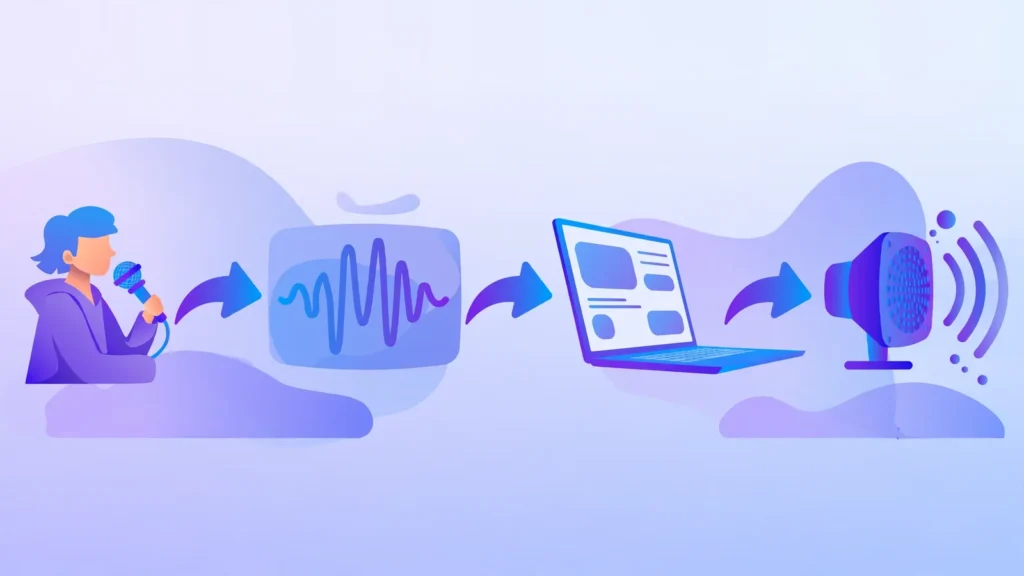
With Chatterbox installed, cloning is simple. You point the tool at your voice sample and give it the text you want spoken. Chatterbox reads your sample, builds a voice profile from it, and speaks your text in that voice. This is called zero shot cloning, because the model needs no training on your voice in advance: it learns the voice from the sample on the spot.
Start with a short test sentence, around 20 to 30 words, and listen carefully. Check three things: does it sound like you, is the pacing natural, and are there any odd artifacts such as repeated words or strange pauses. If the first result sounds close but not quite right, try a different section of your recording as the reference sample. The quality of the sample matters more than any setting.
Chatterbox also supports expression tags in the text. Writing a tag such as laugh in square brackets can add a laugh, and similar tags add pauses and emphasis. The English only Chatterbox Turbo model is built for this style of expressive control, while the multilingual flagship model is the default choice for cloning in 23 languages. Experiment with one tag at a time and keep the ones that sound natural.
Step 4: Generate Longer Audio in Chunks
Long scripts need a different approach. Generate your audio in short chunks, one paragraph at a time, rather than feeding in a whole video script at once. Short chunks sound more consistent, and if one chunk comes out wrong you only redo that chunk instead of the whole recording.
Write your script in plain, speakable language. Short sentences sound better than long ones. Read numbers and abbreviations out in full in your script, because the model will read exactly what you type. Add commas where you would naturally pause. After generating each chunk, save the audio files with clear names in order, then join them in a free editor such as Audacity, which also lets you trim silence and normalize the volume across chunks.
Expect generation to run slower than real time on a modest GPU and faster than real time on a strong one. As a rough guide, Kokoro 82M, a much smaller narration model, turned 2,730 characters into 162 seconds of speech in 59 seconds on a laptop CPU in a November 2026 test, about 2.7 times faster than real time. Chatterbox is heavier, so allow more time, and generate in the background while you work on something else.
No GPU? Use Kitten TTS 2 Instead
If your computer has no dedicated graphics card, Kitten TTS 2 is the practical cloning option. It is a 1.7 billion parameter speech model packed into about 954 MB, it auto detects your device and runs on CPU, and it supports 16 languages. Its makers recommend the llama.cpp port for the fastest CPU speed.
Kitten TTS 2 allows commercial use up to 1 million dollars in revenue, which covers most creators and small businesses, but read the model card for the exact terms before using it in paid work. The workflow is the same as Chatterbox: a clean sample, a short test, then chunked generation. Quality is good, though Chatterbox on a GPU still has the edge for expressive delivery.
What About Kokoro and XTTS?
Kokoro 82M is worth knowing about, but it does not clone voices. It is a tiny 82 million parameter model that ships with 54 built in voices across 8 languages, runs on CPU, and is Apache 2.0 licensed, which allows commercial use. If you want a fast narrator and you do not need your own voice, Kokoro is the easiest local option. Think of it as the narrator, and Chatterbox as the cloning tool.
XTTS v2 from Coqui was once the go to cloning model, needing only 6 seconds of audio across 17 languages. Today it is hard to recommend for new projects: the underlying Coqui repository is archived and read only, and the model licence is non commercial, which means you cannot use it for monetized videos or client work. Chatterbox has taken its place for most users. Our companion article 5 Best Free Alternatives to ElevenLabs for Realistic Voiceovers compares these options side by side if you want the full picture.
Improving Quality: Five Tips That Actually Help
First, re record your sample if the clone sounds off. Nine times out of ten the sample is the problem, not the model. Second, keep the reference sample to one speaker and one room, with no music or background noise. Third, generate two or three takes of each chunk and keep the best one. Fourth, write scripts the way you speak, with contractions and short sentences, because formal written language sounds stiff when spoken. Fifth, do a light edit in Audacity: trim long pauses, remove any repeated words, and apply gentle noise reduction only if needed.
One more note: every Chatterbox output carries an audio watermark by default, added by Resemble AI. This is a provenance mark, not a spoken tag, and it is there so cloned audio can be identified as AI generated. Do not try to strip it. If you publish cloned audio, say so in your video description or show notes. Honest disclosure protects you and your audience.
Ethics, Consent and the Law
Local cloning removes the platform safety checks, which puts the responsibility on you. Only clone your own voice or a voice you have written permission to use. Never clone a real person to make them say things they did not say. Never use a clone for scams, fake endorsements or impersonation. Many countries and US states now have laws against non consensual voice cloning, and the penalties are serious.
For your own voice, think about where the clone will be used. A clone for your own YouTube narration, audiobook or course is a normal and legitimate use. A clone handed to someone else to use without limits is a risk. Keep your voice sample and your model files private, just as you would keep your passwords private.
Troubleshooting Common Problems
If the install fails, check your Python version against the repository requirements and make sure pip is up to date. If generation runs out of memory, close other programs, shorten your text chunks, or switch to Kitten TTS 2 on CPU. If the voice sounds robotic, try a different sample, speak more expressively in your recording, and check that your sample file is not compressed to a very low bitrate. If the output has odd pauses, simplify the script: remove unusual punctuation and spell out numbers and symbols.
If the model generates slowly, that is normal on a CPU or an older GPU. Let it run in the background and generate in batches. Speed matters less than quality for most projects, and a free local clone that takes an hour to render a ten minute narration still beats a monthly subscription.
Conclusion
Cloning your own voice locally is no longer a research project. Record a clean 30 to 60 second sample, install Chatterbox, generate a short test, then build your audio in chunks. If you have no GPU, use Kitten TTS 2. If you only need a narrator, use Kokoro. The whole setup is free, your voice stays on your own computer, and the quality is now close enough to paid services that many listeners cannot tell the difference. Start with one short test today, and you will know within an hour whether local voice cloning fits your work.
Don’t Miss These, Explore More Topics